A desktop wallpaper should have the same aspect ratio as your screen, and for most monitors and Windows laptops that ratio is 16:9. Yes, 1920×1080 is exactly 16:9. So are 1280×720, 2560×1440, 3840×2160 and 7680×4320. Pick an image in that shape and it will fill the screen without stretching or cropping anything important.
Macs are the main exception. MacBooks are taller than 16:9, and ultrawide gaming monitors are much wider. The tables below give each one its real ratio. If you want a wallpaper nobody else has, FreeGen is a free, no signup text-to-image generator with a 16:9 option, and the last section shows how to use it for a desktop background.
First, the numbers. Then what to do when your image and your screen disagree.
Common screen resolutions and their aspect ratios
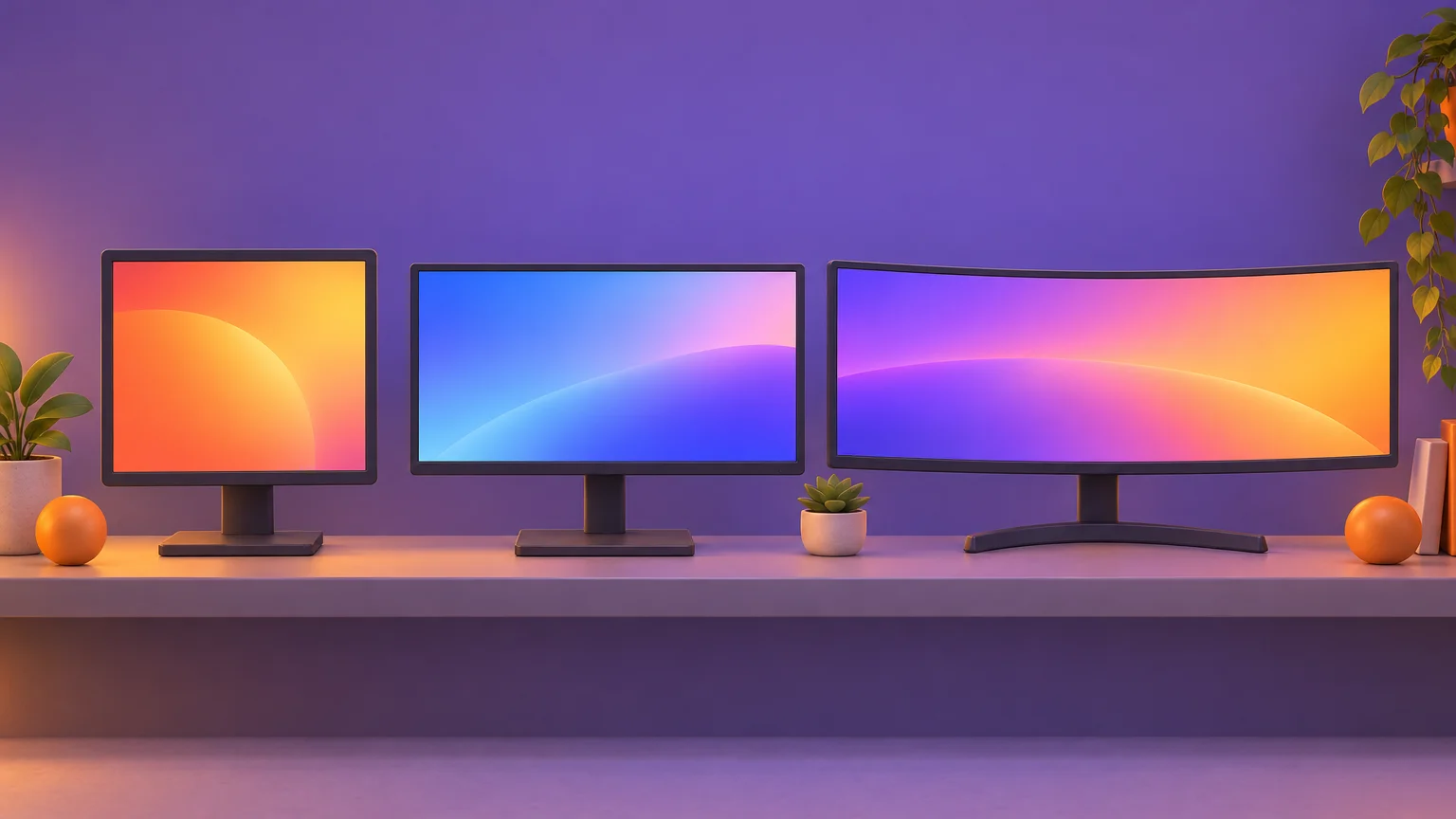
The ratio is what matters most, because it decides the shape. The resolution decides how sharp the image needs to be. Almost every standard resolution since HD has been 16:9. Standard Definition was the older, squarer 4:3.
| Name | Resolution | Aspect ratio |
|---|---|---|
| SD | 640×480 | 4:3 |
| HD | 1280×720 | 16:9 |
| Full HD (1080p) | 1920×1080 | 16:9 |
| QHD (1440p) | 2560×1440 | 16:9 |
| 4K UHD | 3840×2160 | 16:9 |
| 8K UHD | 7680×4320 | 16:9 |
| 16:10 laptop (e.g. MacBook Air M1) | 2560×1600 | 16:10 |
| 34-inch ultrawide | 3440×1440 | 21:9 class (43:18 exactly) |
| Ultrawide 5K2K | 5120×2160 | 21:9 class (64:27 exactly) |
| 49-inch super-ultrawide | 5120×1440 | 32:9 |
A few things in that table are worth knowing. A 32:9 screen is essentially two 16:9 monitors side by side: 5120×1440 is literally 2560×1440 twice. A 21:9 screen is narrower than that but still cinematic, and it sits closer to standard content formats. A 34-inch 3440×1440 ultrawide has about the same pixel density as a 27-inch 1440p monitor, around 110 ppi, so it is wider rather than sharper. A wallpaper made for it needs width, not extra detail.
Working out the ratio of any resolution
If your monitor isn't listed, you can find its ratio yourself. Divide the width and the height by the largest number that goes into both.
- 1920×1080: both divide by 120, giving 16 and 9. That is 16:9.
- 2560×1440: both divide by 160, giving 16:9 again.
- 2560×1600: both divide by 320, giving 8:5, which is the same shape as 16:10.
- 5120×1440: both divide by 160, giving 32:9.
A quicker check is to divide width by height. 16:9 comes out at about 1.78, 16:10 at 1.6, 3:2 at 1.5, 21:9 at about 2.33, and 32:9 at about 3.56. Common ultrawide panels such as 3440×1440 and 5120×2160 land around 2.37 to 2.39, which is why the table above calls them 21:9 class. If your screen's number is close to one of those, an image in that ratio will fit it well.
MacBook and iMac screens
Most iMacs are 16:9, but MacBooks are not. The older MacBooks are 16:10, and the newer Air and Pro models are a little taller still, at roughly 1.54:1. A 16:9 image set to fill one of these screens will lose a strip at each side.
| Mac | Resolution | Aspect ratio |
|---|---|---|
| MacBook Air (M1, 2020) | 2560×1600 | 16:10 |
| MacBook Pro 13-inch | 2560×1600 | 16:10 |
| MacBook Air (M2, 2022) | 2560×1664 | about 1.54:1 |
| MacBook Air 15-inch (M2, 2023) | 2880×1864 | about 1.55:1 |
| MacBook Pro 14-inch (incl. M3, 2023) | 3024×1964 | about 1.54:1 |
| MacBook Pro 16-inch (incl. M3, 2023) | 3456×2234 | about 1.55:1 |
| iMac 21.5-inch (2013, Late 2015) | 1920×1080 | 16:9 |
| iMac 27-inch (2013) | 2560×1440 | 16:9 |
| iMac 24-inch (M1, 2021 and M3, 2024) | 4480×2520 | 16:9 |
| iMac 27-inch Retina 5K (Mid 2015) and iMac Pro 27-inch (Late 2017) | 5120×2880 | 16:9 |
For a MacBook Pro, the simplest rule is to use an image at least as large as the resolution in the table and keep the main subject away from the far left and right edges. That way it survives whichever way the screen trims it.
Phones are a different job altogether, because they are tall rather than wide. If that is what you are making, the site's guide to the 9:16 Instagram Story format covers making tall images.
Finding your own screen's resolution
The tables are a shortcut, but your own settings give the definitive answer. It takes under a minute.
On Windows:
- Type Display Settings in the search bar and open it.
- Go to Scale and layout.
- Read the figure in the resolution drop-down box.
Use that resolution figure, not the scale percentage next to it, when you size a wallpaper.
On a Mac:
- Click the Apple logo, then About This Mac.
- Look under Displays. The screen resolution is listed there.
Once you have the two numbers, run the divide-by-common-factor check from the section above if your screen is not in either table.
When the image doesn't match the screen: Fill, Fit, Stretch and the rest
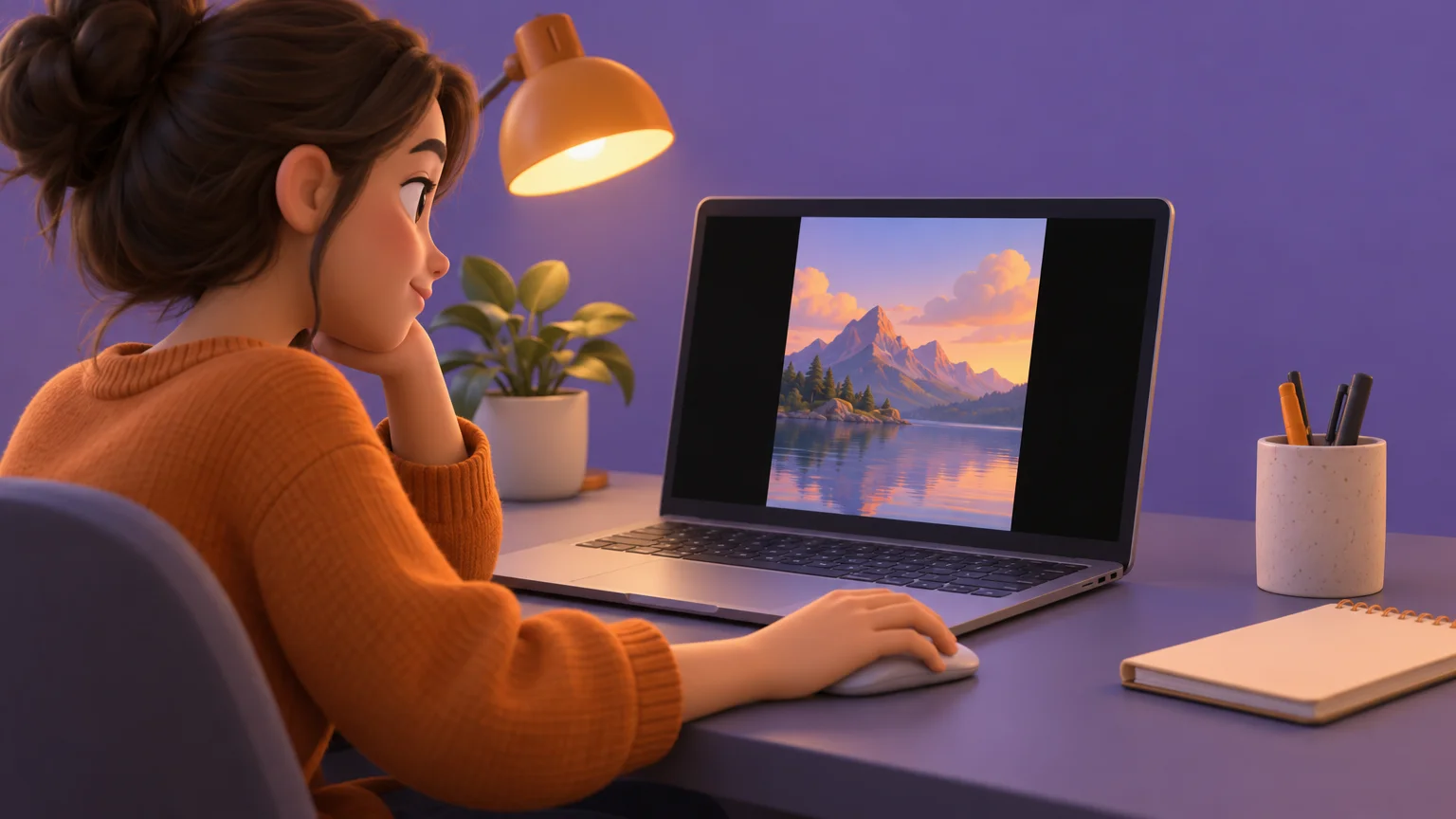
If your wallpaper looks stretched, cut off or framed by black bars, the image and the screen have different ratios, and the fit setting is deciding what to do about it. On Windows those options are Fill, Fit, Stretch, Tile, Center and Span. They apply when Picture or Slideshow is the background, and each one decides how the image is shown. Microsoft Support's guide to changing the desktop background describes them like this:
| Setting | What it does | When to use it |
|---|---|---|
| Fill | Enlarges the image to cover the whole screen, and may crop parts of it | Most photos and art, if the subject is near the middle |
| Fit | Keeps the aspect ratio and fits the image inside the screen, so bars may appear at the sides or top and bottom | When nothing may be cut off |
| Stretch | Stretches the image over the whole screen, and distorts it if the ratio differs | Only when the ratio already matches |
| Tile | Repeats the image across the screen | Small patterns and textures |
| Center | Puts the image in the middle without resizing it, leaving a border if it is smaller than the screen | Large images, or a deliberate framed look |
| Span | Stretches one image across multiple monitors | Multi-monitor setups |
In practice, Fill is the safe default. A 16:9 image on a 16:10 laptop loses a thin strip from each side and nothing else changes. Stretch is the one that causes the squashed-faces look people complain about, so avoid it unless your image is already the exact shape of your screen.
If no setting looks right, the image is the wrong shape. You have two fixes. Crop it to your screen's ratio in any image editor, keeping the subject inside the frame. Or, if it is a generated image, regenerate it at 16:9 instead of cropping, so the composition is built for the shape from the start.
How big the image should be, and two-monitor setups
A wallpaper that is too small or too large for the screen can look distorted or stretched, so aim to match your screen's resolution. The practical risk is in one direction. An image smaller than the screen has to be enlarged by Fill or Stretch, and it goes soft, or Center leaves a border around it. An image larger than the screen in the right ratio is simply scaled down.
So if you are choosing between a 1080p and a 4K version of the same wallpaper, take the one that matches or exceeds your screen. On a 1920×1080 monitor either works. On a 3840×2160 monitor, the 1080p file will look noticeably softer.
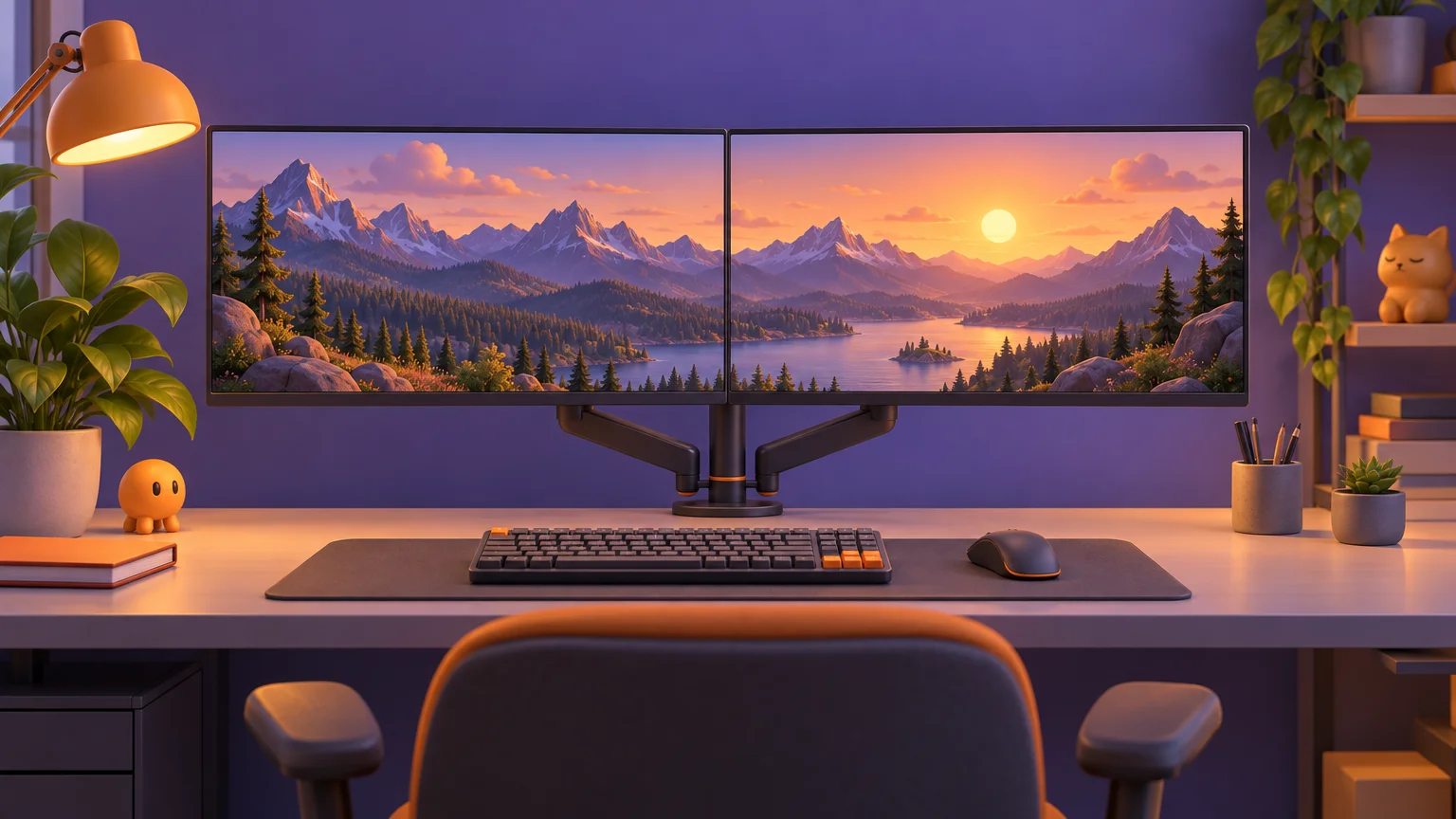
Spanning two or more monitors
For a single image across several monitors, size it to their combined resolution. Add the widths of displays that sit side by side and keep the height:
- Two 1920×1080 monitors: 3840×1080.
- Two 2560×1440 monitors: 5120×1440, the same shape as a 32:9 super-ultrawide.
Then pick Span in the Windows fit options. If you would rather have separate pictures, Windows lets you set the same picture on every display or a different one for each: with Picture as the background, right-click an image in the list and choose the monitor. With Slideshow, each screen shows a different picture from the chosen folder.
Setting the wallpaper on Windows and Mac
Windows:
- Open Settings and select Personalization, or right-click the desktop and select Personalize.
- Under Personalize your background, choose Picture. Solid color and Slideshow are the other options.
- Pick one of the default images or click Browse to choose your own file.
- Set the fit option from the table above. Fill is the usual starting point.
There is also a shortcut: in File Explorer, right-click an image file and choose Set as desktop background. Windows accepts JPEG, PNG and BMP files.
Mac:
- Open the Apple menu, then System Settings.
- Click Wallpaper on the left.
- Choose a built-in wallpaper, or scroll to the bottom and click Add Folder to add the folder holding your own image.
Making a 16:9 wallpaper yourself
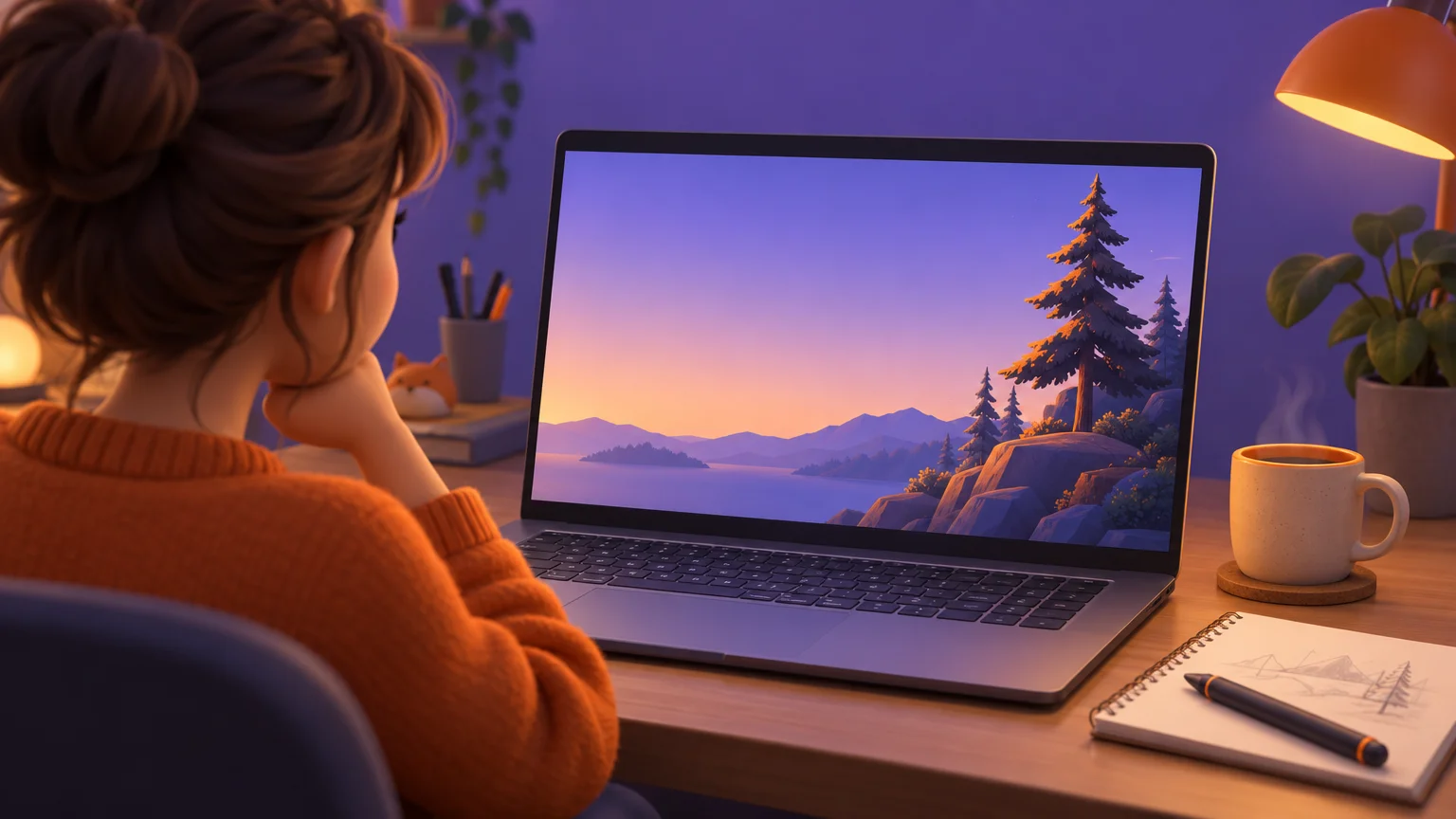
Download sites are full of wallpapers, but they are also the ones everyone else has. If you want something made for your own screen, generating it takes a few minutes. As of November 2026, FreeGen is free with no signup, runs on the Z-Image Turbo model, and usually returns an image in under ten seconds. Its 16:9 widescreen option is the one meant for wallpapers.
- Open the generator and choose 16:9 in the aspect ratio options before you generate. The other choices are 1:1, 4:3, 3:4 and 9:16.
- Write a prompt that describes the scene and where things should sit on the screen.
- Click Generate and wait. The image appears on its own, and you save it by right-clicking it. JPEG or PNG both work as wallpaper.
The part most people skip is composition. Desktop icons usually sit on the left and the taskbar or Dock runs along an edge, so tell the model where to leave space. These prompts show the pattern:
misty pine forest at dawn, soft golden light, subject on the right third, left side calm and empty, wide landscapeminimal desert dunes at dusk, pastel sky, horizon low in the frame, centre empty, clean and uncluttereddeep blue ocean surface seen from above, gentle waves, no objects, even texture edge to edgecozy rainy city street at night, neon reflections on wet pavement, main detail in the lower right, top half mostly sky
Phrases like "centre empty" or "left side calm" give your icons somewhere to sit. For more starting points, the wallpaper section of the copy-and-paste prompts article has ready-made lines, and the funny backgrounds article shows composition notes in more detail. You can also browse the examples gallery, where each sample shows the full prompt that made it.
You can start from a photo instead. Upload it as a reference image for an image-to-image result, keep 16:9 selected, and describe the change you want, such as the same landscape as a watercolour painting. That is a cleaner way to reshape a favourite photo than cropping it to death.
Getting it to your screen's full size
FreeGen's homepage gives the output size as 1024×768, which is fine on a small laptop but looks soft on a large or 4K monitor. Before you set it as your background, check the pixel size of the saved file, then enlarge it with the free AI Image Upscaler linked from the homepage FAQ until its width reaches your screen's native width. If the result still looks off, use Fill rather than Stretch, and regenerate at 16:9 rather than cropping when the shape is wrong.
Generated images carry no watermark and can be used for personal and commercial projects, so a wallpaper you like can also go on a slide or a print.
Frequently Asked Questions
What wallpaper size does a Mac Mini need?
A Mac Mini has no screen of its own, so the wallpaper size depends on the monitor attached to it. Check that monitor's resolution under Displays in About This Mac and size the image to match. Most external monitors are 16:9, so a 16:9 image at the monitor's resolution is the usual answer.
What file format should a desktop wallpaper be?
Windows supports JPEG, PNG and BMP wallpapers. JPEG keeps photos small, and PNG is better for flat colour and sharp edges. A FreeGen image saved as JPEG or PNG works as a Windows wallpaper.
Can I have a different wallpaper on each monitor and each virtual desktop?
You can set a different picture on each monitor in Windows by right-clicking an image in the Picture list and choosing a display. With multiple virtual desktops, though, Windows doesn't support a separate background picture per monitor. If you need both, a single image spanned across the monitors is the simplest workaround.