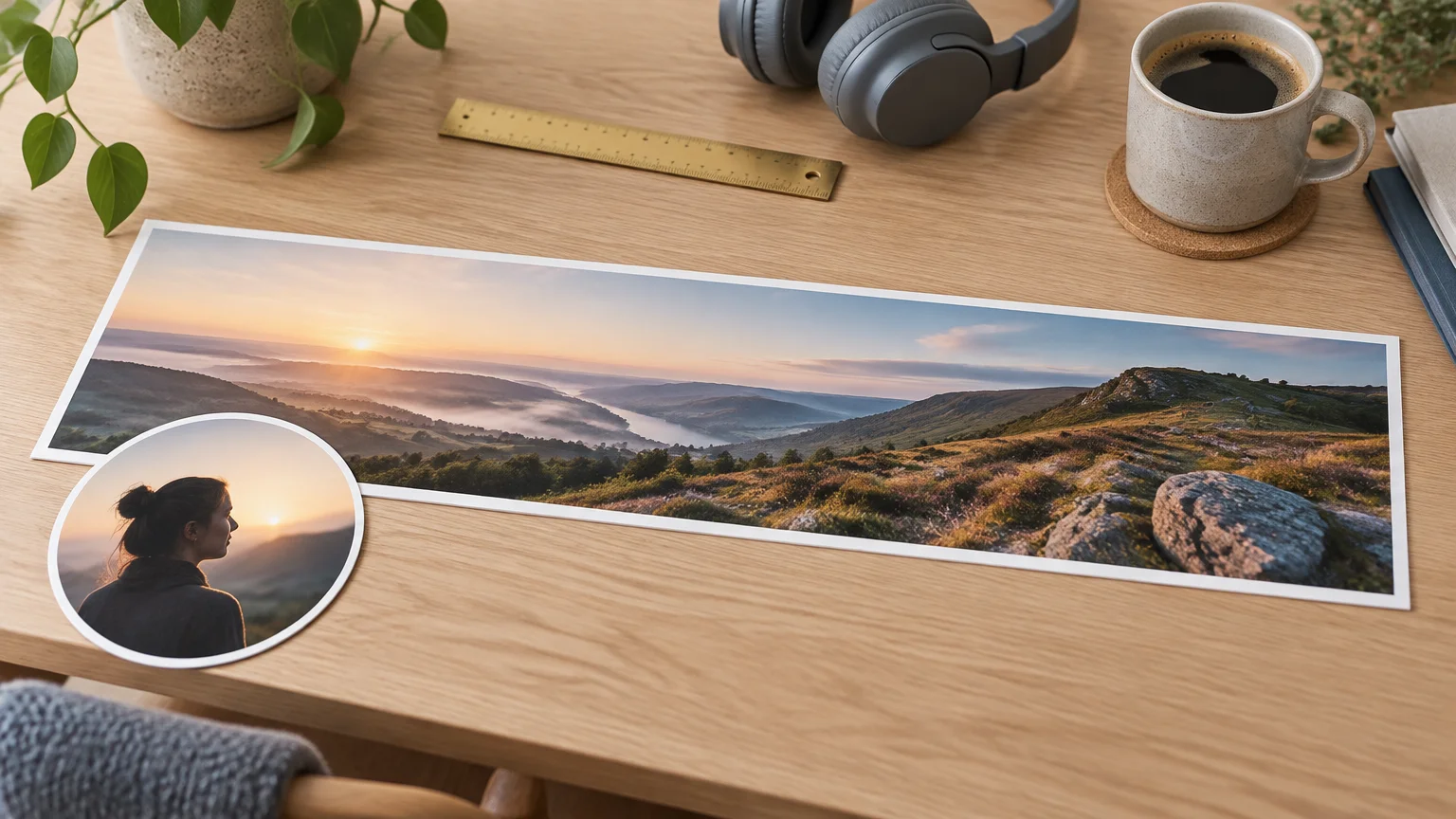
The X (Twitter) header is 1500 × 500 pixels, a 3:1 aspect ratio. Upload a JPG or PNG under 2 MB and it will go through. If you want extra sharpness on high-density screens, 3000 × 1000 keeps the same shape.
The numbers are the easy part. The hard part is what goes in that long strip. Your profile picture covers a chunk of the bottom-left, and the top and bottom edges get trimmed on some screens. Most photos you own are the wrong shape. This guide gives you the spec first. Then it covers the safe zone and how to make an original header from scratch. You can do that with a free, no-signup generator like FreeGen, then crop it to size without stretching.
Every X header number in one place
| Spec | Value |
|---|---|
| Recommended size | 1500 × 500 px |
| Aspect ratio | 3:1 |
| Optional high-resolution size | 3000 × 1000 px |
| File types | JPG, PNG, static GIF |
| Animated GIF | Not supported |
| Safe file size | Under 2 MB |
| Edge crop | Up to 60 px top and bottom |
| Profile picture | 400 × 400 px, shown as a circle |
Figures checked November 2026.
The 1500 × 500 recommendation is consistent everywhere. MiniTool reports that X's own help centre gives it. Viraly's size guide lists the same figure and the 400 × 400 circular profile picture. People also call it the banner, the header or the cover photo. Viraly confirms these all mean the same image at the top of the profile.
For sharper results on retina screens, postfa.st lists an optional 3000 × 1000 px header. Other 3:1 sizes at or above 1500 × 500 keep the same shape too. Onlypult uses 2400 × 800 as an example.
2 MB or 5 MB?
This is where guides disagree, and it matters most when you export at 3000 × 1000.
- Postfa.st, MiniTool and Onlypult all give 2 MB as the limit.
- Usevisuals lists 5 MB.
- The 5 MB figure also appears in ad specs. TweetEraser, for example, gives 1500 × 500 at 5 MB for ads. That is a different context from a profile header.
- The 2 MB figure goes back a long way. Agorapulse's guide from December 2014 already gave headers a 2 MB ceiling.
The practical answer is to keep the file under 2 MB. That passes whichever limit applies, as of November 2026. How heavy a file ends up depends on the image and your export settings, so check the file size after you save. If it is over 2 MB, save it as a JPG at a lower quality setting, or drop to 1500 × 500.
GIFs and file types
JPG, PNG and GIF are all accepted, but animated GIFs are not supported. A GIF header will show as a still frame at best. Use a JPG for photos and painted scenes. Use a PNG for flat graphics with sharp edges or text.
Is there a minimum size?
None of the sources here gives a minimum pixel size. Onlypult's warning that banners under 48 KB are not suitable is about file size, not dimensions. The recommended 1500 × 500 is the size to aim for.
The safe zone: what your followers actually see
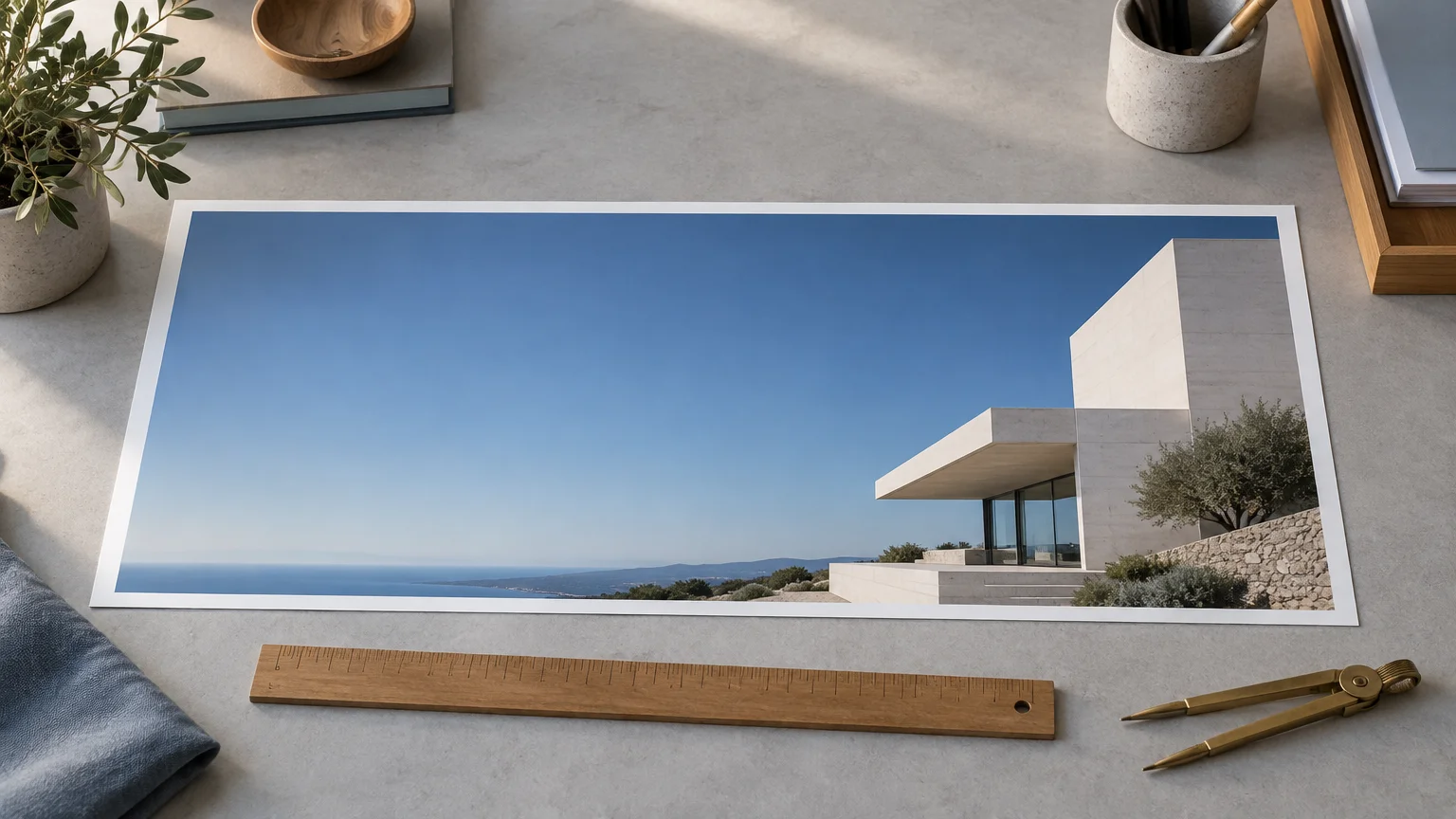
Your 1500 × 500 canvas is not all visible at once. Two things eat into it.
The top and bottom edges. Postfa.st, citing X's Help Center, says up to 60 px at the top and bottom can be cropped, depending on screen and browser. That leaves a band of about 380 px in the middle that always shows. Viraly is more cautious and advises keeping roughly the middle 60 percent of the height as the safe area. On a 500 px tall header, that is the band from about 100 px to 400 px.
The bottom-left corner. On desktop, your profile picture overlaps the bottom-left of the header. Anything placed there sits behind your face.
A working layout looks like this:
- Keep words, logos and faces inside the middle band, roughly 100 px to 400 px from the top.
- Leave the left third of the lower half free of anything important. Plain sky, water, wall or gradient is ideal there.
- Put your focal point centre or right of centre.
- Let the edges hold texture and colour, not information.
This is also why so many headers look cluttered. People design them as a full rectangle, and then the avatar and the crop cut into the best part.
Making an original header with a free AI generator
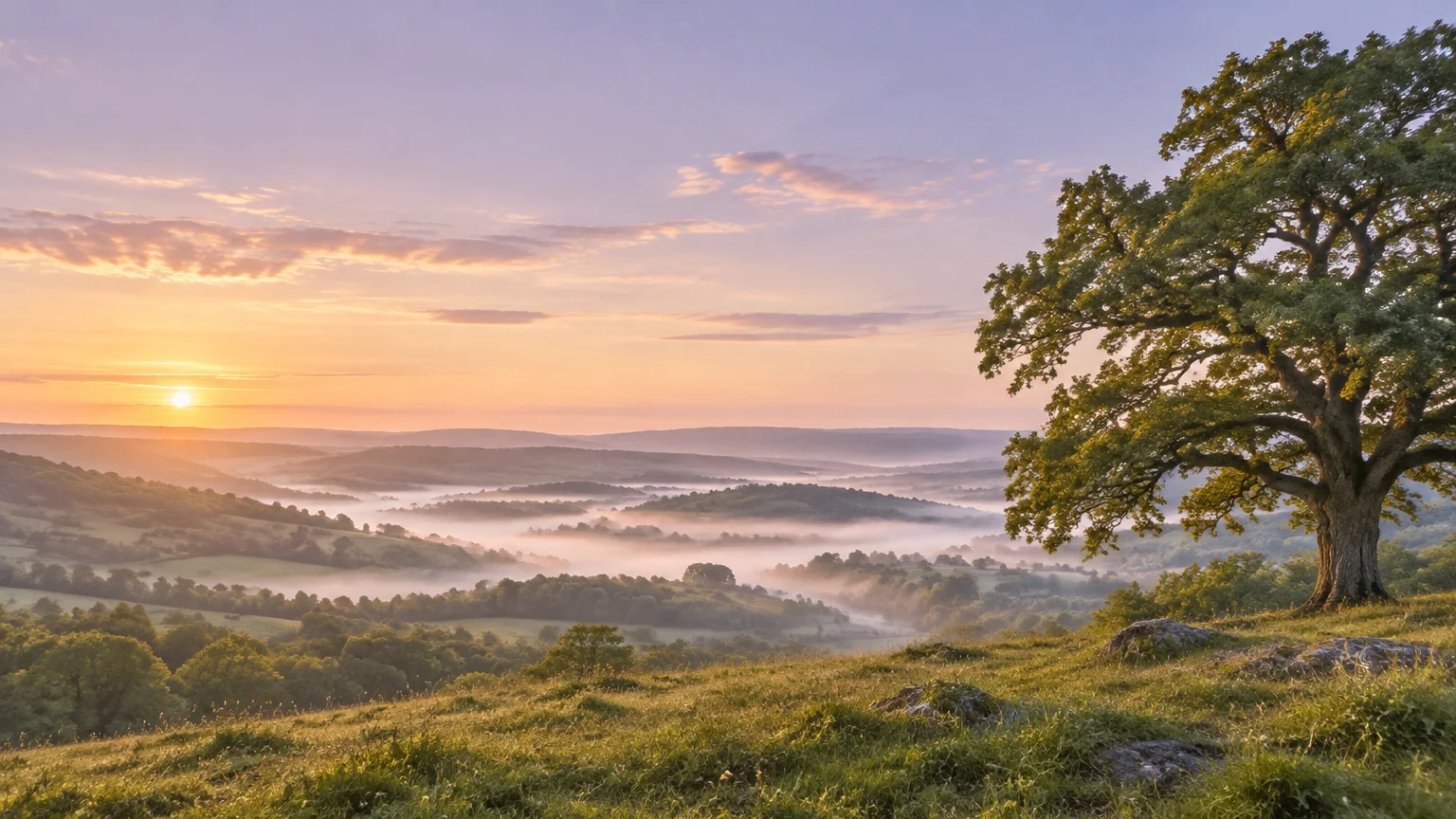
You don't need a template or design skills to get a header nobody else has. A text-to-image generator can paint the background for you. All you have to do is describe the layout as well as the subject.
On FreeGen, you type a prompt and pick an aspect ratio. You get an image in about ten seconds, free, no signup. Choose the widest aspect ratio on offer. A 3:1 crop always loses height, and a wider starting frame loses less.
Write the layout into the prompt
Most image prompts describe a subject. A header prompt also needs to describe where things go. Four habits help:
- Say it is wide. Words like "wide panoramic", "cinematic wide shot" or "long horizontal composition" push the model to spread the scene sideways.
- Place the subject. "Subject on the right side of the frame" keeps it away from your avatar.
- Ask for quiet space. "Empty sky on the left", "calm open water in the foreground" or "plain soft gradient on the left" gives your profile picture somewhere to sit.
- Keep detail in the middle. "Horizon across the centre" lines your main content up with the safe band.
Leave out text. Small lettering is where image models most often go wrong, and you can add your name or tagline later with any basic editor.
Prompts to start from
Copy these as they are, then change the subject to suit you.
For a calm personal profile:
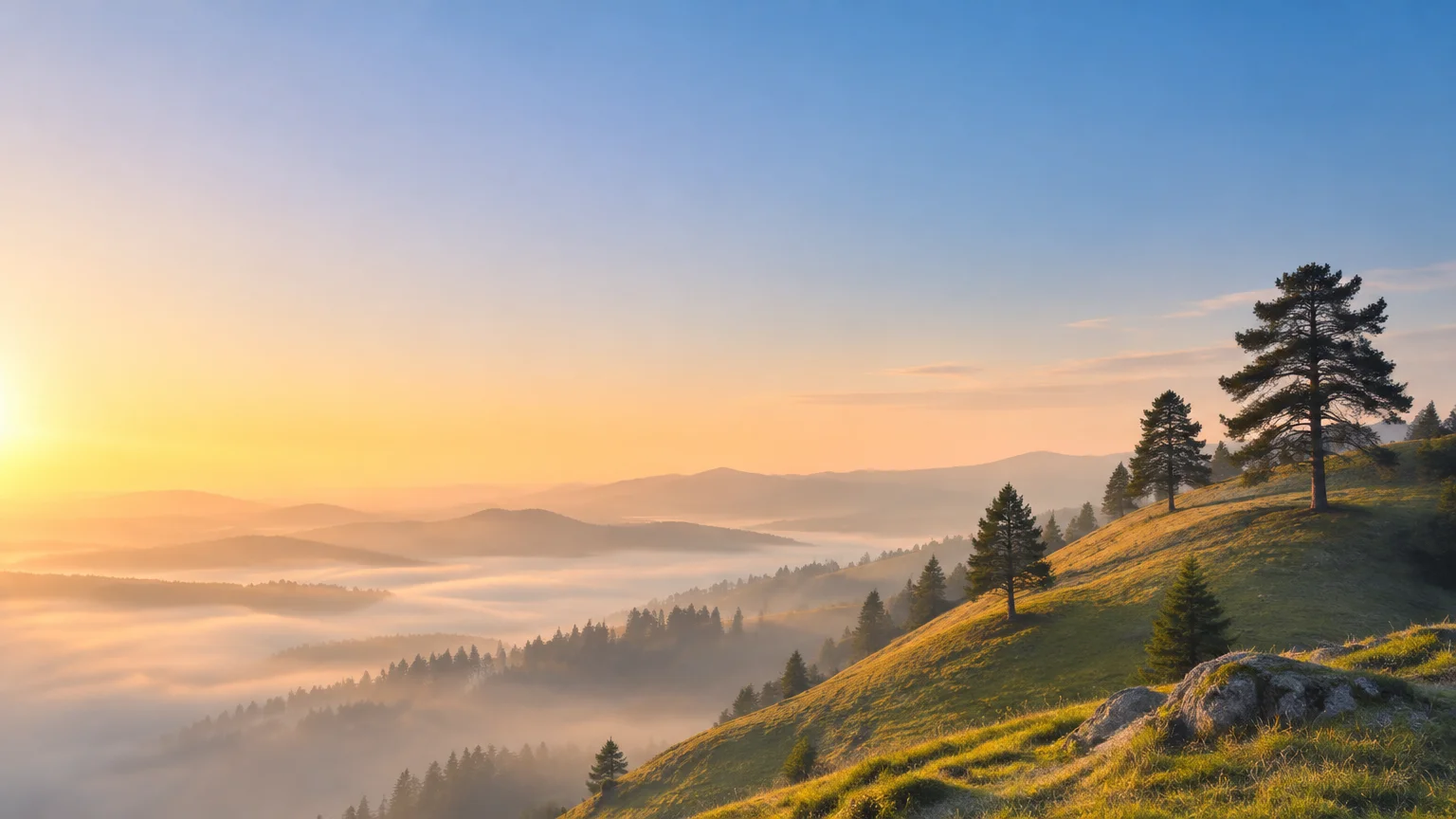
Wide panoramic landscape of rolling green hills at sunrise, soft mist, horizon across the centre of the frame, a single tree on the right side, empty pale sky on the left, gentle warm light, photographic
For a developer or tech account:
Wide cinematic shot of a dark desk at night, laptop and glowing keyboard on the right third of the frame, deep blue gradient background fading to black on the left, shallow depth of field, minimal, no text
For an artist or illustrator:
Long horizontal watercolour painting of a coastline, cliffs and a small lighthouse on the right, calm open sea filling the left half, soft pastel colours, paper texture, plenty of empty space
For a food or café account:
Wide overhead photo of a wooden table, coffee cup and croissants arranged along the right side, clean empty wood grain on the left, natural window light, warm tones
For a gaming or streaming profile:
Wide panoramic futuristic city skyline at dusk, neon lights concentrated in the centre and right, dark purple sky, quiet empty rooftops on the left, cinematic, no text
If you want to see how longer prompts read, the FreeGen examples gallery shows 15+ images next to the full prompts that made them.
If the first result misses
Generate again before rewriting. The same prompt gives different layouts each time, and one will usually put the subject in the right place. If the subject keeps landing in the bottom-left, say so in plainer words: "the left half of the image is empty sky". If the scene feels cramped, add "distant" or "small in the frame". A small subject survives a 3:1 crop better than a close-up.
Starting from your own photo
If you already have a photo you like, such as your shop front, a city skyline or your cat, you can use image-to-image instead. Upload it as a reference image and describe the style you want: "same scene as a soft watercolour, wide composition, empty sky on the left". The result keeps the feel of your photo, and you can steer the layout toward a banner.
One note on rights: use images you made or have permission to use. That means your own photos, artwork you generated, or brand assets you own. If you want to know more about what happens when you type a prompt, read how AI image generators work.
Getting any image to 1500 × 500 without stretching
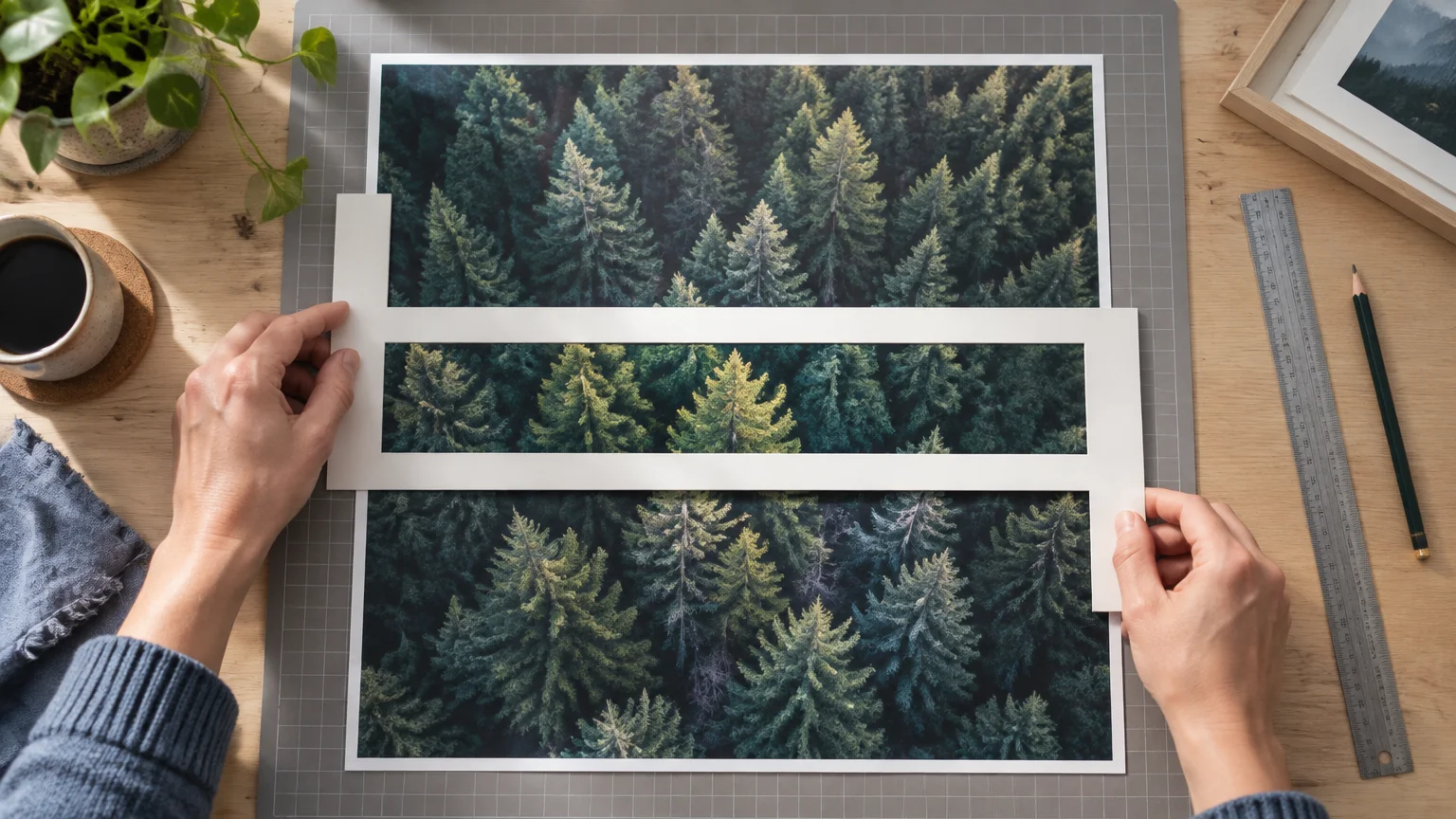
There is one rule here: never resize an image straight into 1500 × 500 unless it is already 3:1. Forcing a square or 16:9 image into that shape squashes it, and people and circles look flattened. You change the shape first, by cropping or extending. Then you resize.
Option one: crop
Cropping cuts a 3:1 strip out of a taller image. It is quick and keeps the pixels sharp, but you lose height. This is how much of the original survives a full-width 3:1 crop:
| Source shape | Example | Height kept |
|---|---|---|
| 16:9 (widescreen) | 1920 × 1080 | about 59% |
| 4:3 | 1024 × 768 | about 44% |
| 1:1 (square) | 1080 × 1080 | about 33% |
| 4:5 (portrait post) | 1080 × 1350 | about 27% |
| 9:16 (phone story) | 1080 × 1920 | about 19% |
A widescreen image keeps most of the scene. A phone photo taken upright keeps a thin slice. So for upright photos, cropping only works if the interesting part is a horizontal band, like a skyline or a horizon.
To crop, open the image in any editor that has a fixed-ratio crop. Most phone galleries and free web editors do. Set the ratio to 3:1 and slide the box until your subject sits centre-right inside the middle band. Then export.
Option two: extend
Extending adds width instead of cutting height. Place the image on a 1500 × 500 canvas and fill the empty sides. You can use a solid colour taken from the image's edge, a blurred and enlarged copy of the image, or a matching gradient. This suits square logos, product shots and portraits where you can't afford to lose the top or bottom. The extended sides also happen to be good places for the avatar to sit.
A third route is to regenerate. If you made the image on FreeGen, run the prompt again with "wide panoramic" and "empty space on both sides". That is often faster than fixing a crop that doesn't work.
Then resize, and check the width
Once the image is 3:1, resize it to exactly 1500 × 500, or 3000 × 1000 if your crop is that big. Make sure you are scaling down, not up. If your 3:1 crop is narrower than 1500 px, it will need enlarging, and enlarged images go soft.
This is where the subject matters. A FreeGen image is 1024 px wide at its standard size, so a full-width crop needs about a 1.5× enlargement to reach 1500. Soft scenes like skies, mist, watercolour, gradients and bokeh handle that well. Fine detail such as small text, thin lines or crowds shows the softness more. Pick your style with that in mind, and add any text afterwards at full resolution so the letters stay crisp.
Uploading and checking it
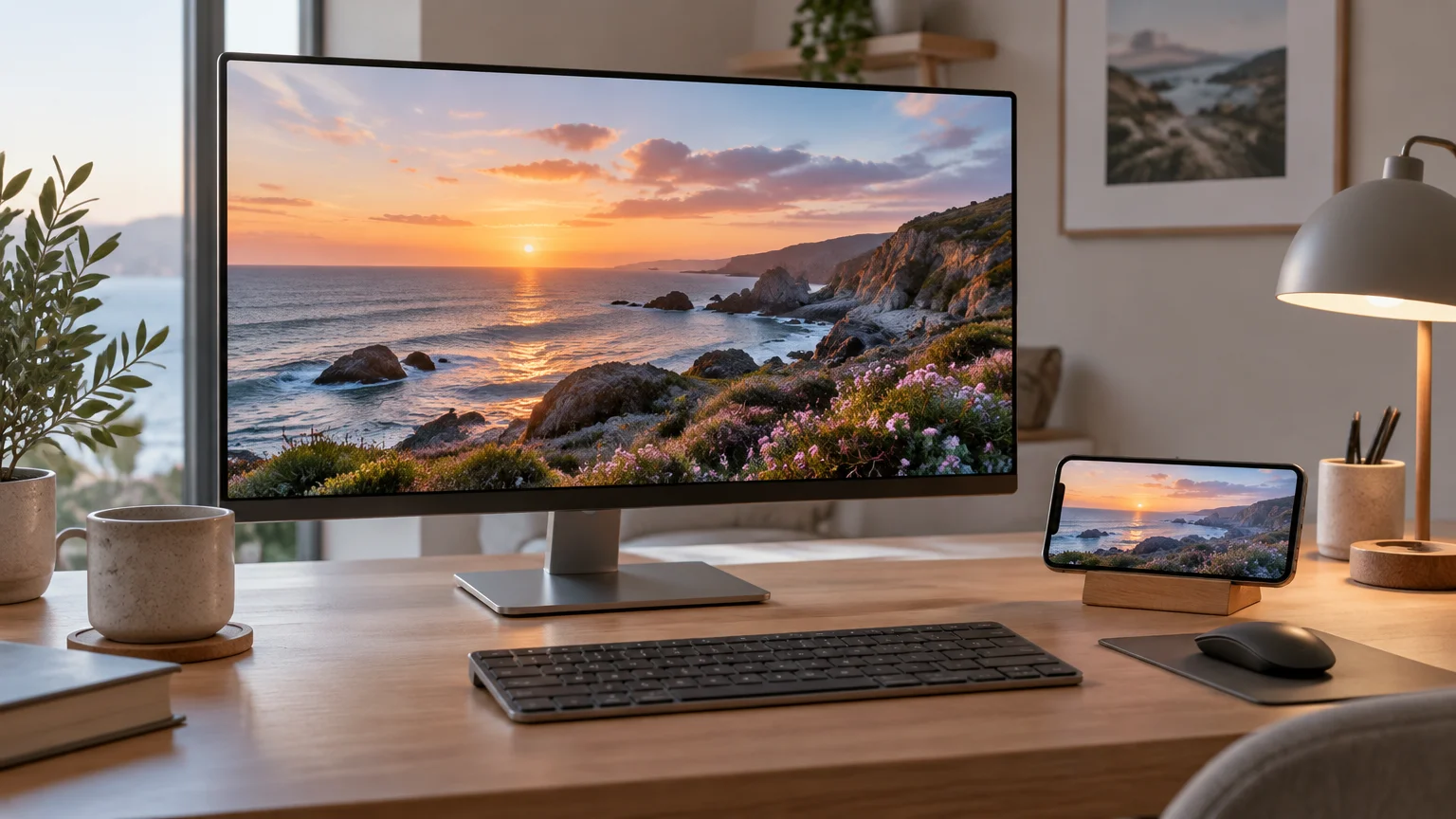
Upload your finished file to the header on your X profile. If your image is exactly 3:1, it already matches the shape of the header.
Then check it in two places: your profile on a desktop browser and on your phone. On desktop, look at the bottom-left, where the avatar overlaps. On mobile, look at the top and bottom edges. If something important is clipped, move it toward the centre in your editor and upload again.
The same habits carry over to other networks, though the shapes differ. The LinkedIn banner is a narrower 4:1 (guide here), and Facebook covers have their own safe band (covered here).
Frequently Asked Questions
What size is the X (Twitter) header?
1500 × 500 pixels, a 3:1 aspect ratio. You can upload 3000 × 1000 for extra sharpness on high-density screens, as long as the file stays within the size limit. Other 3:1 sizes at or above 1500 × 500, such as 2400 × 800, keep the same shape.
What is the standard size of a header?
On X, the standard header is 1500 × 500. Other platforms use their own shapes, so a header made for X will not fit LinkedIn or Facebook without recropping. Always check the ratio for the platform you are uploading to.
Is the maximum file size 2 MB or 5 MB?
Most size guides list 2 MB, while some list 5 MB, and 5 MB also appears in X ad specs. Keeping the file under 2 MB works under either figure, as of November 2026. If a large file is rejected, save it as a JPG or use 1500 × 500.
Can I use an animated GIF as my header?
No. GIF files are accepted, but animation is not supported in the header. You will get a still image at best, so save your header as a JPG or PNG.
How can I resize my photo to fit a Twitter header?
Crop it to 3:1 first, then resize to 1500 × 500. Resizing without cropping squashes the image. If cropping would cut off too much, which is common with upright phone photos, place the photo on a 1500 × 500 canvas and fill the sides with a matching colour or a blurred copy.
Why does my header look blurry?
Often it is because a small crop was enlarged to reach 1500 px, and enlarged images go soft. Start from a wider image, or choose a soft subject like sky or watercolour that hides enlargement. Heavy JPG compression can also cause blur, so export at a reasonable quality.
What ratio is 1080 × 1350?
4:5, the portrait shape used for feed posts. Cropping it to a 3:1 header keeps only about 27 percent of its height, so it rarely makes a good banner source. Extending it with filled sides usually works better.
Where should my name or logo go on the header?
Centre or right of centre, inside the middle band of the image. Keep it away from the top and bottom 60 px, which can be cropped, and away from the bottom-left, where your profile picture sits on desktop.
Final Thoughts
The spec fits on one line: 1500 × 500, 3:1, JPG or PNG, under 2 MB. What makes a header look good is planning for the avatar and the trimmed edges before you make the image, not after.
If you don't have a picture that fits, write a wide prompt with empty space on the left and let FreeGen paint it. It's free, needs no account, and takes about ten seconds per try. Generate a few, crop the best one to 3:1, and your header is done.