The short answer, as of November 2026: Facebook says a cover loads fastest as an sRGB JPG 851 × 315 pixels and under 100 KB, and a Page cover must be at least 400 × 150 pixels. Facebook now shows the cover full bleed at roughly 16:9 on a computer and 2.4:1 on a phone, anchored to the left. For a cover that stays sharp on both shapes, upload a 16:9 image such as 1640 × 924 or 1920 × 1080 and keep anything important inside a central band, worked out below in pixels.
That is why the guides you find disagree. Some still quote the older 820 × 312 desktop and 640 × 360 mobile display sizes, some recommend an 820 × 360 safe zone, and Fuser points out that Facebook does not publish a single correct upload size. All of those numbers were true for some layout at some point. The practical fix is to design for the overlap.
If you also need the picture itself, you can make one on FreeGen, a free text-to-image generator that needs no signup. Further down are prompts written for wide cover backgrounds with empty space for a name or logo, plus a simple way to get any image into cover shape.
Every Facebook cover number, and which one to use
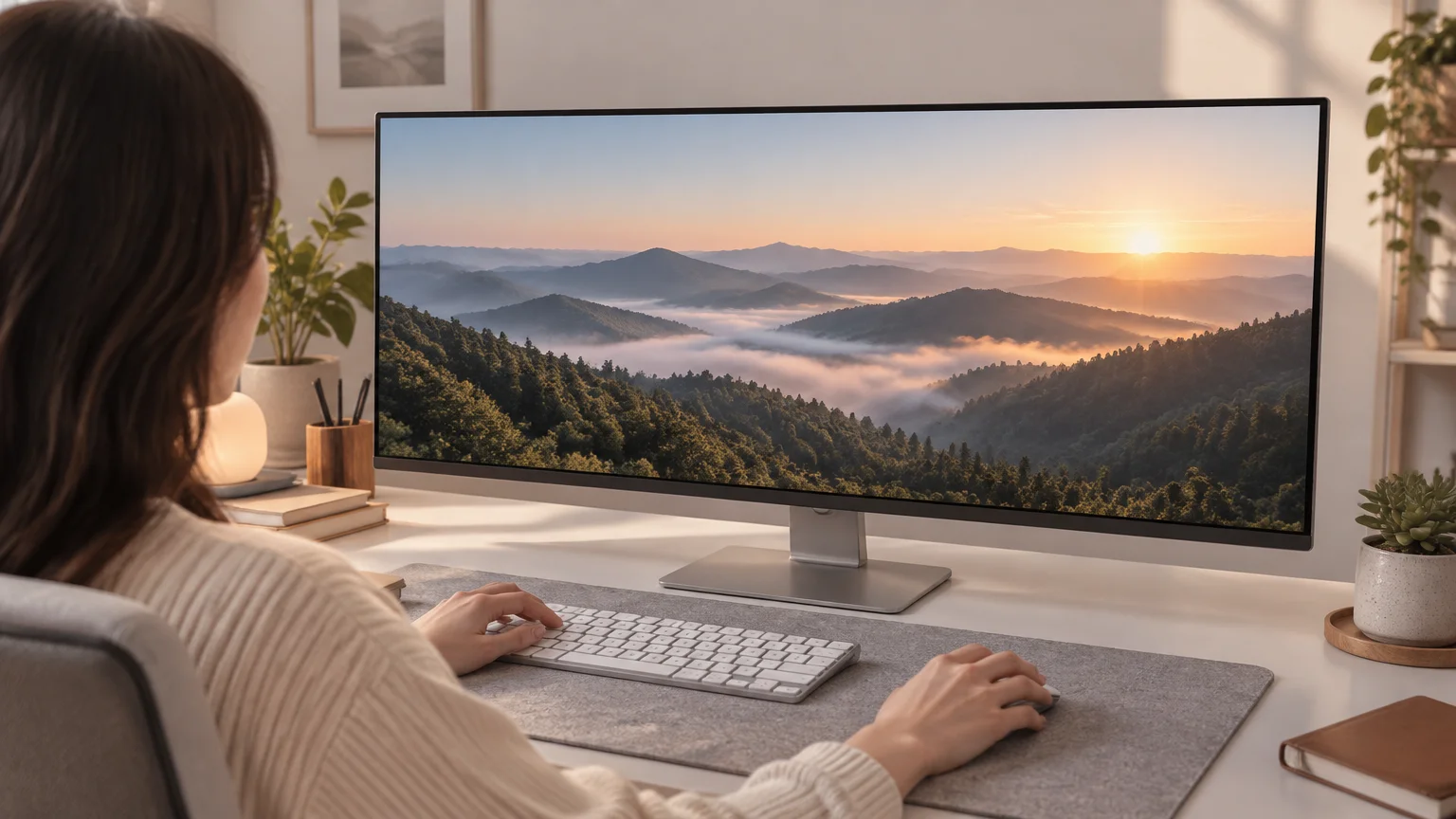
Use 851 × 315 if file size and loading speed matter most, and a 16:9 upload (1640 × 924 or 1920 × 1080) if sharpness on large screens matters most. Both work. The rest of the figures you will see are either display sizes, minimums, or another publisher's recommended safe zone.
Here is where each number comes from:
| Figure | What it is | Source |
|---|---|---|
| 851 × 315 px, JPG, under 100 KB | Facebook's fastest-loading cover | Snappa, quoting Facebook; Adobe Express gives the same size |
| 400 × 150 px | Minimum Page cover size | Fuser; Postfa.st credits Meta Business Help Centre |
| 16:9 desktop, 2.4:1 mobile | Current full-bleed display shape | Fuser and Postfa.st, citing Facebook Help Centre |
| 820 × 312 desktop, 640 × 360 mobile | Older display sizes | Snappa |
| 820 × 360 px | Recommended safe zone | Snappa and Postfa.st |
| 1640 × 924 px | Recommended 16:9 upload | Social Previewing |
| 1640 × 856 px | Group cover | Fuser and Adobe Express (older guides say 1640 × 859) |
| 1920 × 1005 px | Event cover, practical size | Figma |
| 320 × 320 px | Page profile picture upload, shown as a 176 px circle on desktop and 196 px on phones | Fuser |
Sizes checked November 2026.
One detail helps a lot: Facebook crops cover images rather than stretching them. An odd-shaped upload will not look squashed. It will lose its edges. So the question is never which exact pixel size to use. It is which part of the picture will still be visible.
The safe band on a 1920 × 1080 canvas
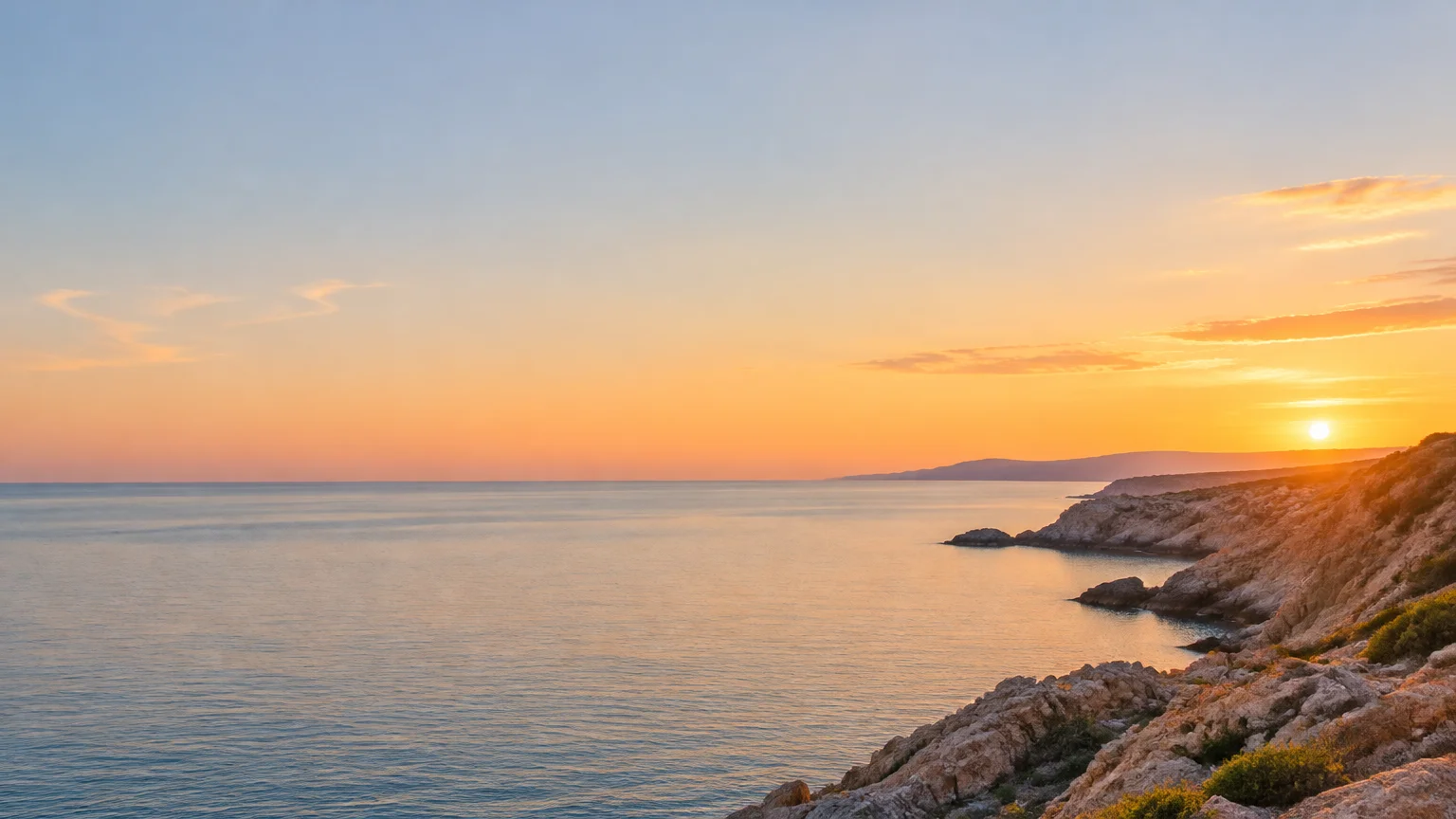
On a 1920 × 1080 canvas, a sensible starting point is to keep your headline, logo and faces to the right of roughly x 270 and between roughly y 185 and y 895, away from the right edge. That band is worked out from the published 16:9 and 2.4:1 display shapes, the older 851 × 315 proportions, and the profile picture in the corner.
Here is the arithmetic behind it. Facebook does not document the crop in pixels, so these are calculations from the published ratios, not measurements of the live site, and they are no guarantee of what any given screen shows.
- Desktop, 16:9. A 1920 × 1080 image is already 16:9, so the whole canvas can show.
- Phone, 2.4:1. At full width, a 2.4:1 strip of a 1920-wide image is 800 pixels tall. If the phone crops evenly from top and bottom, it removes 140 pixels from each, leaving y 140 to y 940.
- Older wide layouts. The 851 × 315 shape is about 2.7:1. On a 1920-wide canvas that is a strip about 711 pixels tall. Centred, it runs from about y 185 to y 895. Staying inside it means a cover made today is more likely to look right if someone sees it in a layout that still uses the older proportions.
- The profile picture. The circle covers part of the left side and sits over the bottom-left area, especially on mobile. Postfa.st suggests a 14% left margin, which on 1920 pixels is about 270. Keep the bottom-left quarter free of text entirely.
If you upload at 1640 × 924 instead, scale the band down: roughly from x 230 rightwards, and y 160 to y 765.
You can check your own cover in two minutes, and you should, because the figures above are ratio maths. Upload it, then open your profile or Page on a phone and on a laptop. If the top of a word or the edge of a logo is clipped on the phone, move it towards the vertical centre. If anything near the right edge is cut, pull it in. That is more reliable than any guide, including this one, because Facebook changes its layout without notice.
One more thing about the background outside the band: it should still look intentional. Sky, texture, soft-focus scenery and gradients work well there, because losing a strip of them on one device does not matter.
Making a cover background with AI prompts
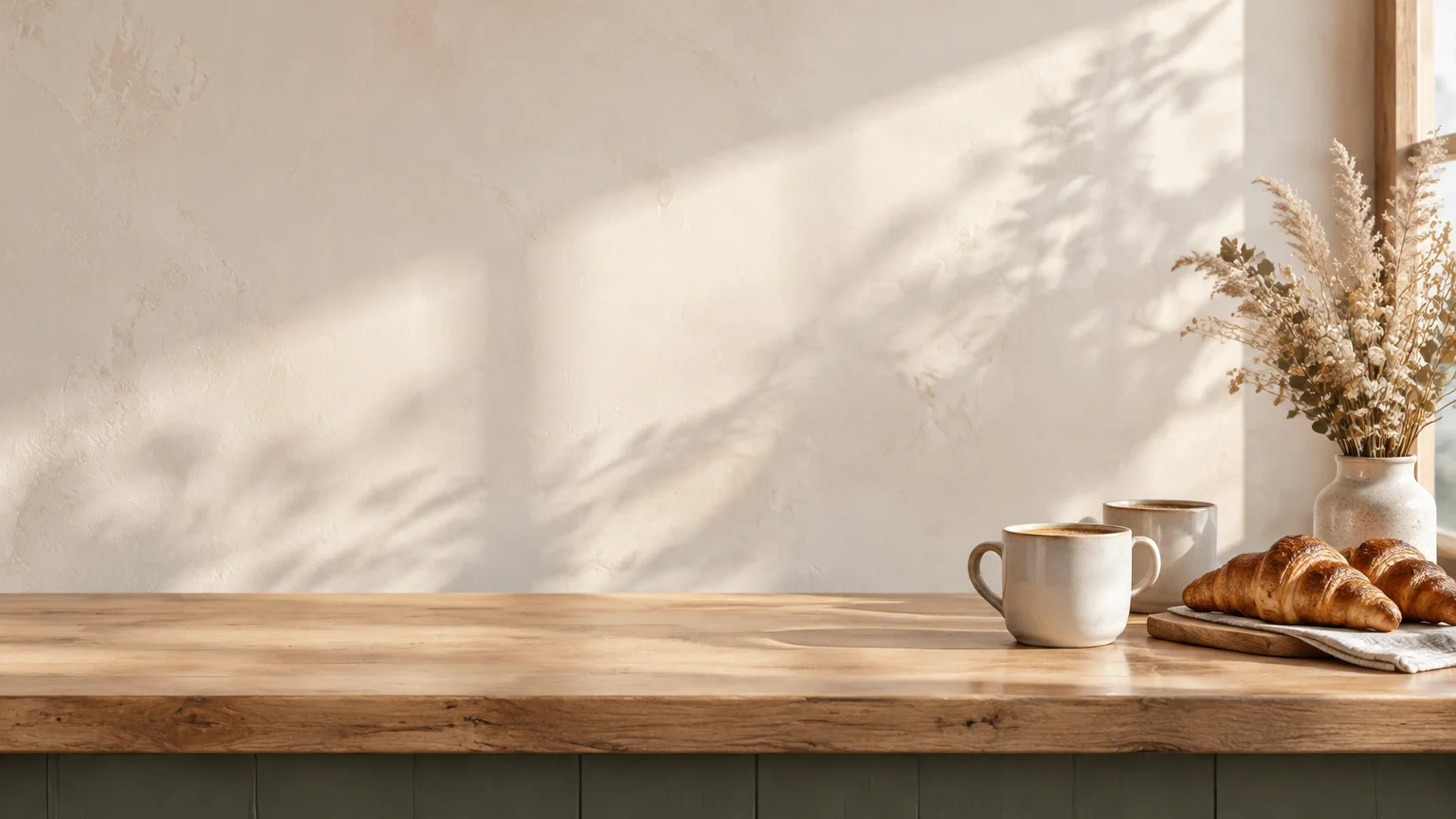
The trick to an AI cover is asking for empty space on purpose. Most prompts put the subject in the middle, which is exactly where your name or logo needs to go. Instead, describe a wide scene, push the subject to one side, and say where the calm, plain area should be.
On FreeGen, type the prompt, pick the widest landscape aspect ratio on offer, and you get an image in about ten seconds. There is no account, the images carry no watermark, and FreeGen's about page says they can be used commercially, including for marketing, which matters if the cover is for a business Page. Generation is free, with rate limiting to stop abuse, as of November 2026.
These prompts are written to leave space in the centre or the upper middle and keep the bottom-left quiet for the profile picture. Copy them as they are, or swap in your own subject.
Café or small food business
Wide panoramic photo of a wooden café counter with coffee cups and pastries on the far right side, warm morning light, large empty softly blurred cream wall across the centre and left, shallow depth of field, calm and uncluttered
Photographer or creator
Wide cinematic landscape of misty mountains at sunrise, the mountain range low along the bottom right, a broad clear pale orange sky filling the upper and central area, minimal, lots of negative space
Tech, coaching or a personal brand
Wide abstract background of soft flowing navy and teal gradients, subtle glowing lines concentrated on the right edge, smooth plain dark centre with no details, clean modern look
Garden centre, florist or outdoors
Wide overhead photo of fresh green leaves and small white flowers clustered along the top right and right edge, the rest a plain light linen surface, natural daylight, airy and simple
Gaming channel or hobby group
Wide digital painting of a neon city skyline at night seen from a rooftop, buildings concentrated on the right third, a dark violet sky with faint stars across the centre, moody, no text
Personal profile
Wide photo of a calm beach at golden hour, gentle waves along the bottom, a small sailboat far on the right horizon, a large clear sky in the middle, soft warm colours, peaceful
A few habits make these work better:
- Leave text out of the prompt. Image models often render words as near-letters. Generate the background, then add your name or headline yourself in any editor or on Facebook's own tools.
- Say "plain", "empty" or "negative space" and where. The model takes position words seriously: "right third", "along the bottom", "upper centre".
- Ask for soft focus behind the space. A blurred wall or sky reads cleanly under white or dark text.
- Generate several and pick. Each run gives a slightly different layout, and one will usually have the space in the right place.
If you want more ideas for scenes and styles, the examples gallery shows full prompts next to their results, and the post on funny background prompts has lighter options for a personal profile.
Getting any image into cover shape
You have three options when a picture is not cover-shaped: crop it, extend it, or resize it. Which one depends on how far the picture is from 16:9.
Crop when the image is already landscape. A 4:3 image such as a 1024 × 768 generation only needs a strip trimmed from the top and bottom to reach 16:9. 1024 pixels wide at 16:9 is 1024 × 576, so you remove 96 pixels from each of the top and bottom, or more from one side if the sky is the boring part. Any phone's built-in photo editor can crop to 16:9.
Extend when the image is square or portrait. Cropping a square photo to 16:9 throws away almost half of it. Instead, use image-to-image: upload the photo to FreeGen as a reference image, choose a wide aspect ratio, and describe the wider scene you want, for example:
Same scene extended into a wide panorama, more open sky above and soft empty space on the left and centre, matching colours and lighting
Be aware that image-to-image makes a new picture guided by your reference. It keeps the mood, colours and composition, not every pixel. For a logo or a face that must stay exact, crop instead, or place the original on top of a generated background.
Resize last. Once the shape is right, scale the image to your target, such as 1640 × 924 or 851 × 315. Scaling a 1024-wide image up to 1640 softens fine detail, which is fine for skies, gradients and blurred scenery. If you go to 851 × 315 and want Facebook's under-100 KB fast-loading figure, save it as a JPG and check the file size; how small it gets depends on the picture, so lower the quality setting step by step until it fits. For more on how ratios and resolution affect AI output, see how AI image generators work.
Uploading, repositioning and changing the cover quietly
Uploading takes a minute, and the one thing worth knowing beforehand is that a new cover is announced. Facebook automatically posts cover photo changes, so friends and followers may see it in their feed.
On a computer
The usual route, though Facebook renames buttons from time to time, goes like this:
- Open your profile or Page.
- Look for an edit or add option on the cover photo itself.
- Choose to upload a photo, or pick one you have already posted.
- Drag the image up or down to position it, then save.
On desktop, the post that announces the change does not have an Edit audience option. According to Windows Digitals, the best you can do is open the post afterwards and choose Hide from profile.
In the mobile app
The steps are typically:
- Go to your profile or Page and tap the cover to bring up its options.
- Choose to upload a photo and pick the image.
- Drag to reposition.
- Before saving, look for Share your update to News Feed and uncheck it if you want a quiet change.
Menu wording shifts between app versions, so if a label differs slightly, look for the nearest equivalent on the cover. After saving, view the result on the other device too. A framing that looks right on a laptop can clip a headline on a phone.
Cover videos
Older guides list cover videos as 20 to 90 seconds long and at least 820 × 312, with 820 × 456 as a recommended size. Look in your own Page's cover menu to see whether a video option appears. If it is not there, a strong still image does the same job.
Frequently Asked Questions
What is the Facebook Page cover photo size in 2026?
Facebook's fastest-loading figure is 851 × 315 pixels as a JPG under 100 KB, and the minimum is 400 × 150. For sharper results on large screens, many people upload a 16:9 image such as 1640 × 924. Either way, keep important content inside a central safe band.
Is the Facebook cover photo 16:9?
On a computer, the current layout shows it full bleed at about 16:9. On a phone it shows at about 2.4:1, which is wider and shorter, so the top and bottom get cropped. Designing at 16:9 with text in the vertical middle covers both.
How can I make my photo a Facebook cover size?
If it is landscape, crop it to 16:9 in your phone's photo editor. If it is square or portrait, extend it by using it as a reference image in an image-to-image tool like FreeGen with a wide aspect ratio, then resize. Facebook will crop rather than stretch anything you upload, so getting the shape right first avoids surprises.
Why does my cover text get cut off on my phone?
The phone view is 2.4:1, so it trims the top and bottom of a 16:9 image. Text placed near the top or bottom edge, following an older guide, is what disappears. Move it towards the vertical centre, roughly y 185 to y 895 on a 1920 × 1080 canvas, and check again on the phone.
What makes a good Facebook cover photo?
A calm background with one clear subject placed off to the side, space for a short name or line of text, and nothing important in the bottom-left where the profile picture sits. Simple scenes work better than busy collages, because they still look right when the edges are cropped.
Is a Facebook Group cover the same size as a Page cover?
No. Groups use a wider image, with 1640 × 856 given as the current figure and 1640 × 859 in some older guides. Events have their own size too, with 1920 × 1005 as a practical choice.
Can I change my cover photo without everyone being notified?
In the mobile app, uncheck Share your update to News Feed before saving. On desktop there is no audience setting on that post, so the closest option is hiding the update from your profile after it appears.
What file type should a cover photo be?
Facebook recommends an sRGB JPG for fast loading. If your cover has a logo or sharp text and looks blurry as a JPG, a PNG often keeps the edges cleaner, at the cost of a larger file.
Final Thoughts
The numbers only look contradictory because they come from different layouts. Upload a 16:9 image, keep your text and logo in the middle band, leave the bottom-left for your profile picture, and check the result on a phone before you call it done.
If you do not have a picture that fits, generate one. Pick a prompt from above, swap in your own subject, and try it on FreeGen. It is free, needs no signup, and you will have a few candidates to choose from in under a minute.