An AI image generator takes a written description, called a prompt, and produces a new picture that matches it. Some can also start from a photo you upload, called a reference image. You do not need to draw, and you do not need to pay. Several tools let you start for free, though each one defines "free" differently.
If you want to try one right now, FreeGen runs in your browser with no account. As of October 2026 it says it is 100% free, with no signup and no watermarks, and the first image arrives in about ten seconds. You type a prompt or upload a reference image, pick an aspect ratio, and get a result from the Z-Image Turbo model.
The tool is the easy part. Most people's first images look generic, have a mangled hand, or spell a word wrong. This guide covers why that happens and how to fix it. It also covers what the different free tiers cost and what to check before you use the results commercially.
What "free" actually costs on AI image generators
"Free" usually means one of three things. You get unlimited use with no account. You get a daily allowance of credits after you log in. Or a free tier sits next to paid models that you buy credits for. Before you commit to a tool, check whether it needs a signup, how many images the free allowance covers, and whether it adds a watermark.
Here is how three tools from the current search results compare, based on what each one publishes:
| Tool | Account needed | Free allowance | Cost per image | Watermark |
|---|---|---|---|---|
| FreeGen | No | Advertises no limits | Free | None advertised |
| EzRemove | Yes, free credits arrive on login | Free daily credits, more for purchase | 2 credits on EzRemove 4.0; 10 or 18 credits on Nano Banana Pro (VIP only) | Not stated |
| Bulk Image Generation | Account signup offered on its homepage | Not stated | Not stated | Not stated |
Prices checked October 2026.
The credit model is the one to read carefully. EzRemove does not say on its generator page how many free daily credits you get, so you can't work out in advance how many images they cover. You can find out by logging in and dividing your balance by the per-image cost of the model you pick. Premium models burn credits five to nine times faster than the basic one.
Bulk tools solve a different problem. Bulk Image Generation says it can produce up to 100 images in parallel in 15 seconds using Flux 1.1. That suits a marketer who needs a hundred product variations. It is more than you need for one blog header or a phone wallpaper.
How text-to-image generation works
You write a prompt, and the model builds a new picture from it. It does not search for an existing picture. Each result is new, so the same prompt can give you a different image every time you run it.
This explains most beginner frustrations. The model only knows what you wrote. If you type "a dog," every detail you left out is up to the model, and it tends to land on the most ordinary choice: ordinary breed, ordinary lighting, ordinary background. That is why short prompts look like generic stock photos.
What the model names mean
Generator sites often list the models they run, such as Flux, GPT Image, Nano Banana, SeeDream and Z-Image Turbo. These are different models, and they differ in speed, cost and what they are good at. A few examples from the sites above:
- Z-Image Turbo is the model FreeGen runs for free, with the first image in about ten seconds by FreeGen's account. It suits trying out ideas and making everyday images.
- Flux 1.1 is what Bulk Image Generation uses for its batches of up to 100 images.
- Editing-focused models are built to change an existing image. EzRemove, for example, lists SeeDream 4.0 for accurate editing at up to 4K resolution.
No single model is best at everything. For a social post, a thumbnail or a fun experiment, a fast free model with a well-written prompt usually beats a premium model with a lazy one.
Writing a prompt that gets a good image
A good prompt covers four things in plain language:
- Subject. What is in the picture.
- Setting. Where it is.
- Style. A photo, a watercolor, a 3D render.
- Light and mood. For example, golden hour, overcast or neon.
You don't need special syntax or long lists of keywords. Write it the way you would brief a photographer.
Here are three upgrades from weak to strong prompts. Each one explains why the new wording helps.
Weak: a cat
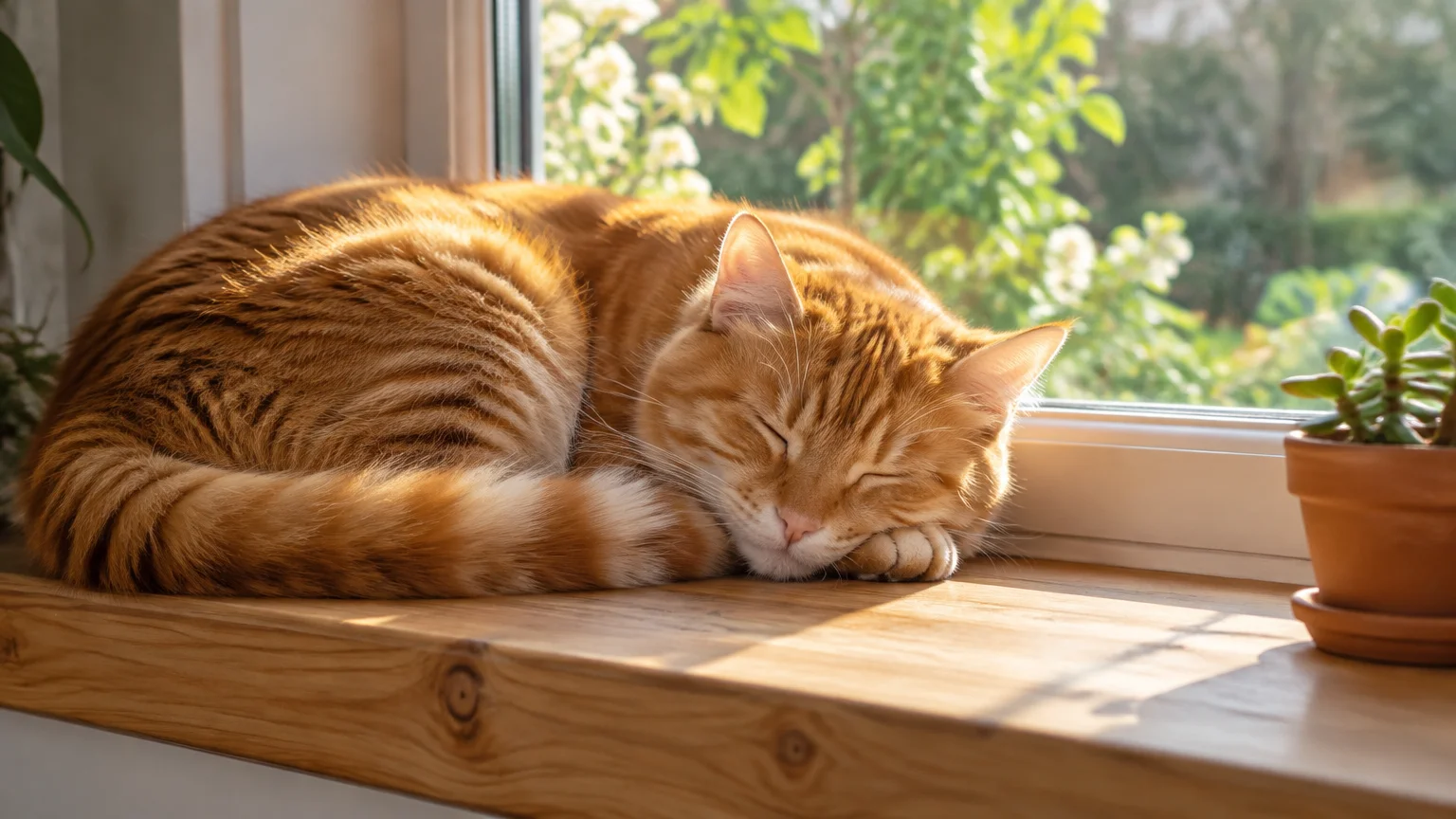
Better: a fluffy orange tabby cat sleeping on a sunlit windowsill, soft morning light, shallow depth of field, realistic photo
Why it works: "Orange tabby" and "fluffy" settle the cat's look. "Sunlit windowsill" gives the model a setting, so it doesn't invent a blank backdrop. "Shallow depth of field" is a camera term for a blurred background and a sharp subject. That is what makes a picture read as a photograph rather than clip art.
Weak: fantasy castle
Better: a stone castle on a cliff above a stormy sea, dramatic clouds, painted in the style of a classic oil landscape, muted blues and greys
Why it works: "On a cliff above a stormy sea" adds a composition and drama. Naming a medium, "oil landscape," sets the brushwork. Naming the colors stops the model from defaulting to bright, saturated fantasy art.
Weak: futuristic city
Better: a rainy futuristic city street at night, neon signs reflected in puddles, a lone figure with an umbrella, cinematic wide shot
Why it works: Rain and reflections give the model texture to render. A single human figure gives the scene scale. "Cinematic wide shot" tells it how far back the camera stands.
It helps to see prompts and results side by side. The FreeGen examples gallery shows 15+ images, each with the full prompt that made it. It covers realistic photography, artistic styles, cute characters and futuristic concepts. Copy a prompt you like, change one detail, and run it again. Changing one thing at a time is the quickest way to learn what each word does. For themed ideas, there are ready-made prompt sets for funny backgrounds and dress designs.
A few habits help more than any keyword:
- Put the main subject first. It keeps the prompt built around what matters most, and makes it easy to see what to change next time.
- Describe what you want, not what you don't want. "Empty beach" works better than "beach with no people."
- Keep it to one scene. If you pack five unrelated ideas into one prompt, you usually get a muddle.
- Run the same prompt two or three times before rewriting it. Sometimes the first result was just unlucky.
Choosing an aspect ratio
The aspect ratio is the shape of the image, width against height. Choose it before you generate, because cropping afterwards cuts off parts of the composition. The frame also shapes the scene. A tall frame invites a standing figure or a tower. A wide frame invites a landscape.
Common targets:
- Square (1:1): profile pictures and feed posts.
- Vertical (9:16 or similar): phone wallpapers, stories and short-form video covers.
- Wide (16:9 or similar): video thumbnails, blog headers and desktop wallpapers.
- Classic (4:3): presentations and general-purpose images. On FreeGen, this frame is 1024×768.
FreeGen offers five aspect ratios. Pick the one closest to where the image will end up. Then mention the composition in your prompt too, for example "full-length portrait" for a tall frame or "panoramic view" for a wide one. When the prompt and the frame agree, the subject is less likely to be cut off at the edge.
Starting from a reference image
Image-to-image generation starts from a picture you upload instead of from text alone. The model keeps the broad layout, shapes and colors of your reference image and redraws it according to your prompt. This is how you turn a photo of your dog into a watercolor, a rough sketch into a finished illustration, or a daytime street into a night scene.
It works best when the prompt describes the change you want, not the whole image again. For example: turn this into a watercolor painting with soft washes of color or same scene at night, lit by streetlights. A clear, well-lit reference gives better results than a dark or blurry one, because the model can only keep what it can make out. You can try this on FreeGen by uploading a photo in place of typing from scratch.
Fixing common failures: text, hands, faces and consistency
Most bad results fall into a few familiar categories, and each has a practical fix.
Garbled text. Many models render letters as convincing nonsense, because they learn what text looks like rather than how to spell. Newer models do better. FreeGen's gallery includes a stone cat holding a sign that reads "Free AI Generator is Cool!" To improve your odds:
- Put the exact words in quotation marks.
- Keep them short, ideally a few words.
- Say where they go, for example
a wooden sign that reads "OPEN".
For anything long, such as a full headline, generate the image without text and add the words afterwards in any basic editor.
Hands and fingers. Hands are small in most training photos, appear in endless poses, and often overlap objects, so models get them wrong. Here are some fixes:
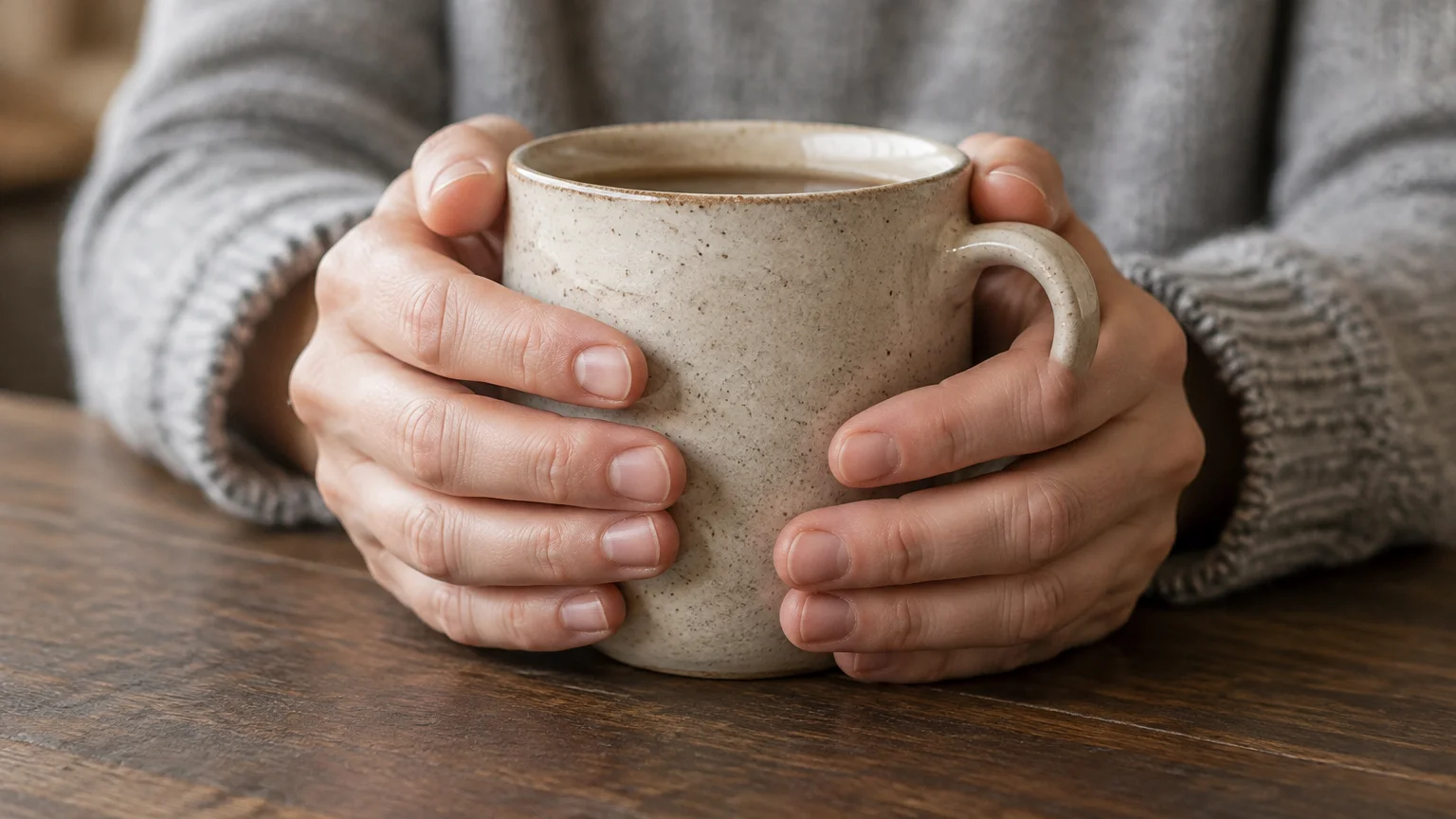
- Give the hands a simple, clear job, such as
holding a coffee mug with both hands. - Frame the shot so the hands are hidden or less prominent, for example
hands in pocketsorportrait from the shoulders up. - Run the prompt again. Hand errors vary a lot from one run to the next.
Faces in crowds. One large face usually comes out well. Ten small ones in the background often blur or warp. If faces matter, keep the number of people low and the camera closer.
Keeping a character consistent. Each generation starts fresh, so the same character drifts between images. Write one detailed description and paste it, word for word, into every prompt. For example: a small robot with a round copper body, one blue eye, and a red scarf. Then change only the scene. Using your best image as a reference image for the next one holds the look even more tightly.
Generic, flat results. Add lighting and a camera or art-medium term. "Golden hour," "studio lighting," "35mm photo" and "gouache illustration" each do more than adjectives like "beautiful" or "amazing," which add little.
What AI image generators refuse, and why
Generators can refuse some prompts, and each tool sets its own rules. The sites compared above don't publish a full list on their generator pages, so the tool's own terms are the place to check what it allows. People often report filters on sexual content, realistic images of real people, graphic violence, and logos or trademarks, but treat that as hearsay rather than a rule for any given tool.
If an ordinary prompt gets rejected, try changing the wording before giving up. Rephrase with a description instead of a name. For example, use "a grey-haired scientist in a lab coat" rather than a real scientist's name. Describing a style, such as "bold flat colors and thick outlines," also works better than naming a living artist or a brand. For parents and teachers, it is worth reading a tool's terms to see what it says it filters, and remembering that no filter catches everything.
Can you own, copyright or sell AI-generated images?
Using an image and owning it are separate questions:
- Permission to use. This comes from the tool's terms. EzRemove, for instance, states that its images can be used for commercial purposes. Read the terms of whichever tool you use before you put an image on a product.
- Copyright protection. Whether you can claim copyright in an AI-generated image is a legal question that depends on where you are and how the image was made. The tool pages compared here don't answer it, so don't assume either way.
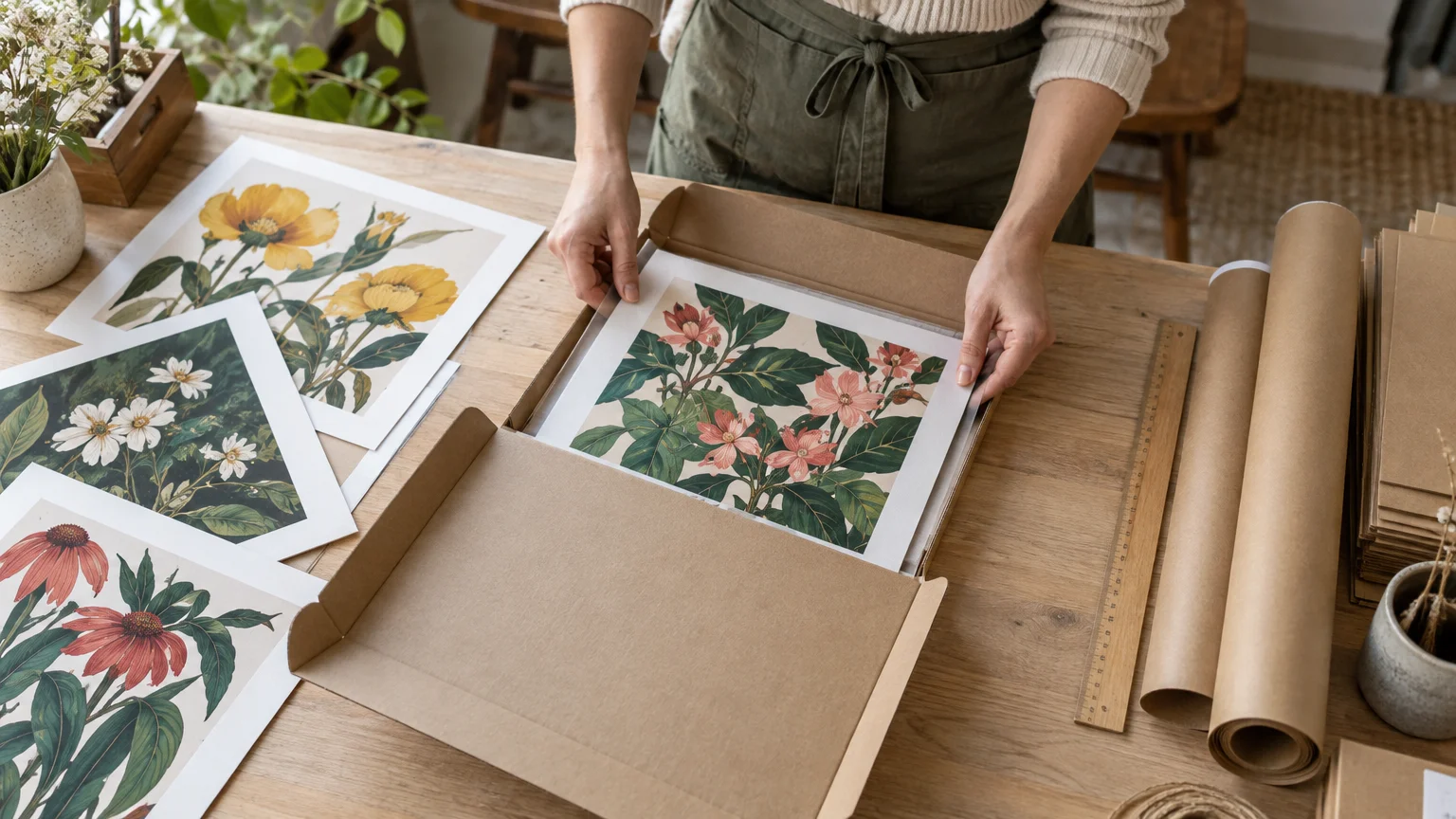
For Etsy and Amazon sellers, bloggers and small marketers, the practical rules are:
- Don't generate anything that copies a trademark, a logo or a recognizable character.
- Don't present AI images as photographs of real events.
- Keep a note of your prompts, in case you ever need to show how an image was made.
- If a design is central to your business, add your own edits and get advice specific to your situation. This section is general information, not legal advice.
Frequently Asked Questions
Is there an AI image generator that needs no signup?
Yes. FreeGen runs in the browser without an account and says it is 100% free with no watermarks. Many other tools give free credits only after you log in. Check each tool's page before relying on its free tier.
How long does it take to generate an image?
It depends on the model and how busy the service is. FreeGen, which runs Z-Image Turbo, says its first image is ready in about ten seconds. Bulk Image Generation says it produces up to 100 images in 15 seconds. Other models can take longer.
Why does my image look generic?
Your prompt is probably too short, so the model fills the gaps with ordinary choices. Add a setting, a style or medium, and the lighting. Copying a prompt from the examples gallery and changing one detail is a quick way to learn.
Why are hands and text often wrong?
Models learn what things look like, not how they work. That is why fingers come out in odd numbers and letters turn into look-alike shapes. Keep text short and in quotation marks, give hands a simple pose or keep them out of frame, and run the prompt again. Hand and text errors vary a lot between runs.
What resolution do free generators produce?
It varies. On FreeGen, the size follows the aspect ratio you pick; its classic 4:3 frame is 1024×768, which is enough for social posts, thumbnails and most screens. Some paid models advertise up to 4K, which matters mainly for large prints.
Can I use AI-generated images commercially?
Often yes, depending on the tool's terms; EzRemove, for example, says its images can be used commercially. Whether you can claim copyright is a separate legal question, so get advice if a design matters to your business. Avoid trademarks and real people's likenesses in anything you sell.
What is the difference between text-to-image and image-to-image?
Text-to-image builds a picture from your prompt alone. Image-to-image starts from a reference image you upload and redraws it based on your prompt, keeping its layout. Use the second when you want to restyle a photo or finish a sketch.
Why was my prompt rejected?
Each generator sets its own rules, and the tool's terms are the place to check them. Sometimes a single name or word is the problem. Replace names with descriptions and try again.
Final Thoughts
The tools that rank highest in search mostly put a signup box in front of you. What decides whether your image is any good is the prompt: a clear subject, a setting, a style and the light. Choose the aspect ratio before you generate. When something goes wrong, change one thing at a time and run it again.
If you want to practice without an account or credits, open FreeGen, pick a prompt from the examples gallery, and change one word. The result will show you what that word does.